
Triage client conversations with clarity
Wren organizes tickets by client, category, priority, status, owner, and latest activity in a focused support queue.
Give every incoming conversation a visible next step.
Deliver thoughtful, organized support that feels personal at scale.
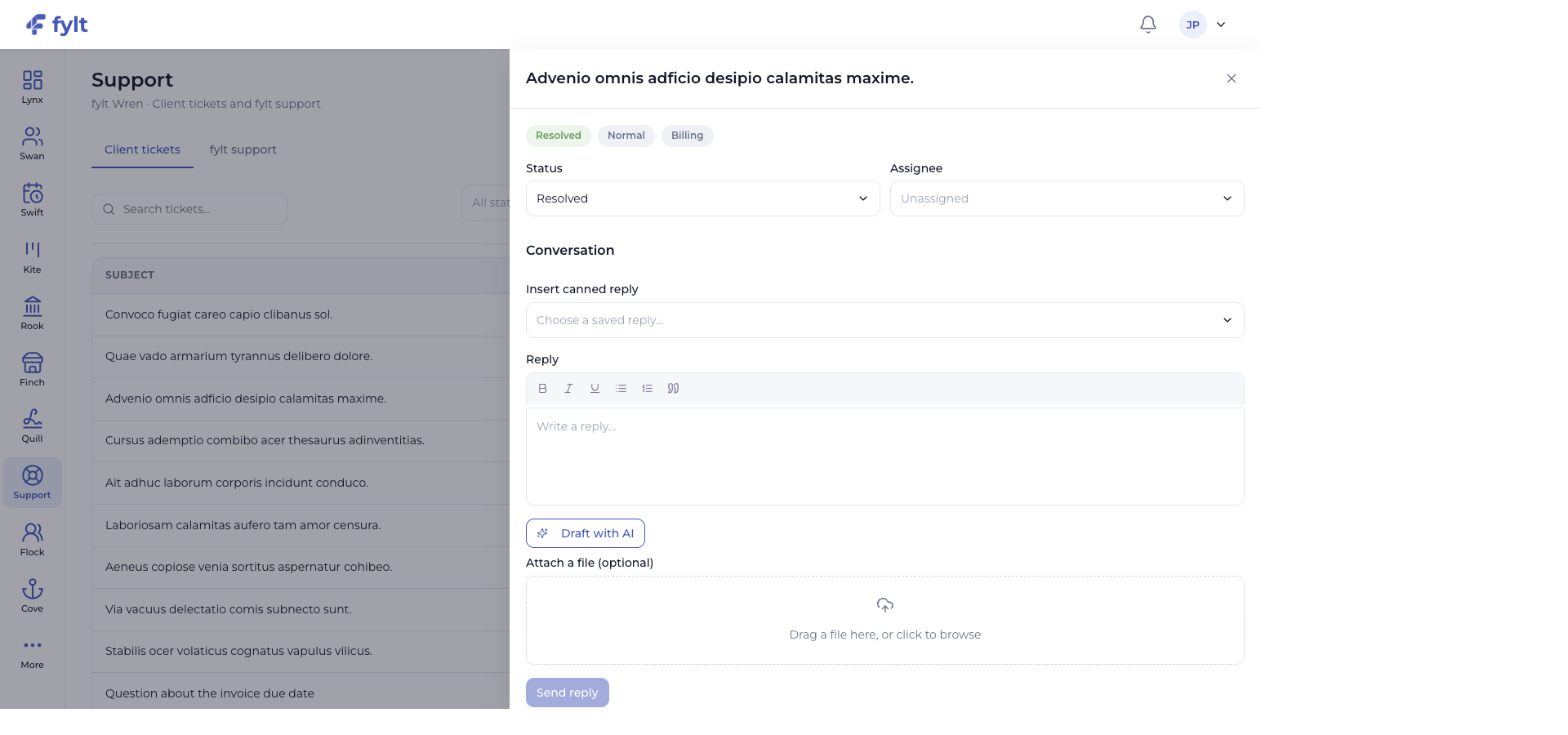
fylt Wren is a thoughtful support workspace for client and business conversations. It brings rich-text tickets, priorities, SLAs, ownership, and reusable reply templates into one responsive queue.
Explore the parts of fylt Wren that support a connected client workflow from the first action to the next useful handoff.
Wren organizes tickets by client, category, priority, status, owner, and latest activity in a focused support queue.
Give every incoming conversation a visible next step.
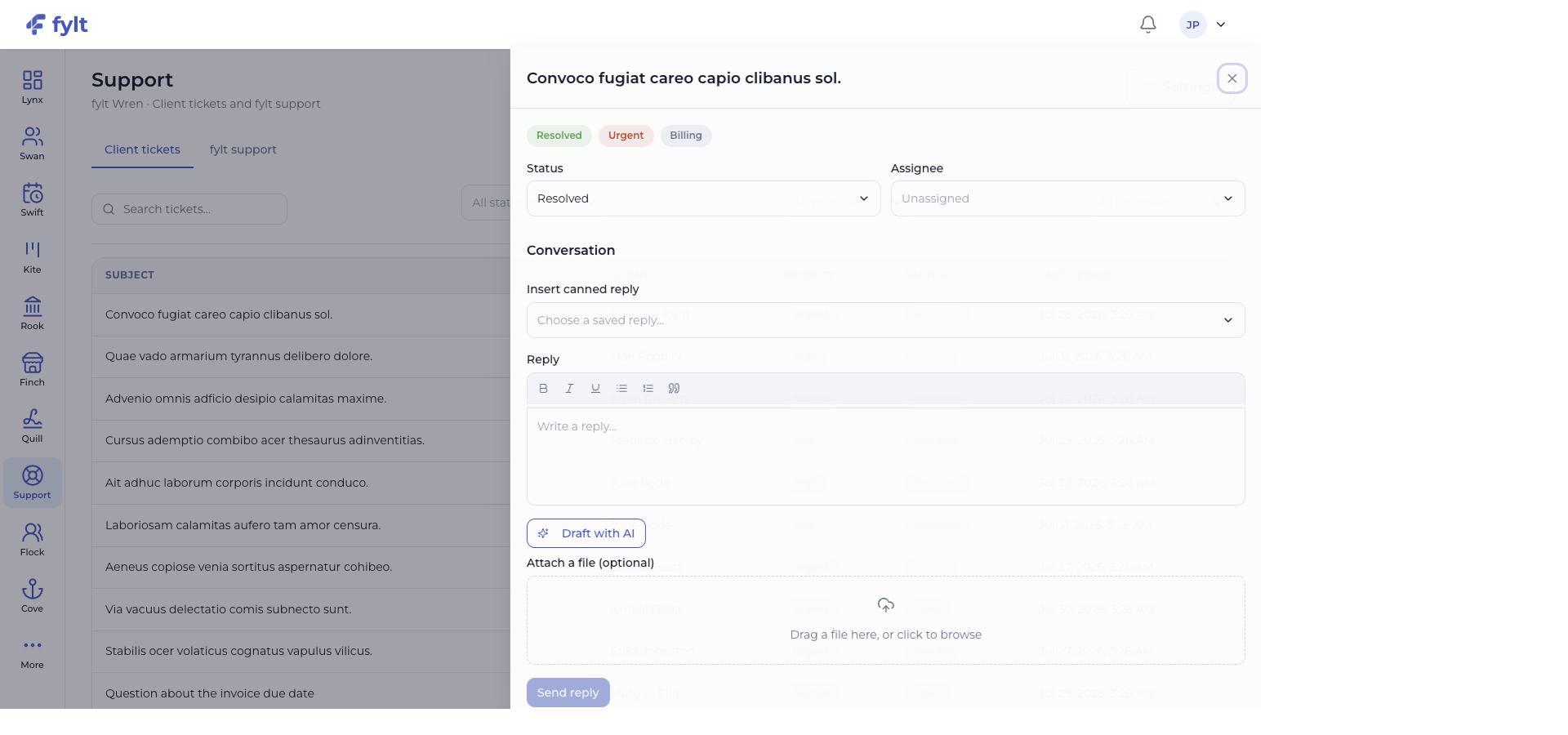
Ticket detail supports rich-text replies, canned replies, file attachments, assignment, and status updates without leaving the conversation.
Help the team respond with context and care.
Categories, priorities, first-response targets, and client update levels give the team a shared support operating model.
Create a support experience that feels organized from the first reply.
AI drafting and reusable canned replies help agents create an editable response that still receives the human team's final review.
Maintain responsive, high-quality communication as ticket volume grows.
Each screen below is a full-width product capture of a distinct capability, setting, or client-facing outcome.
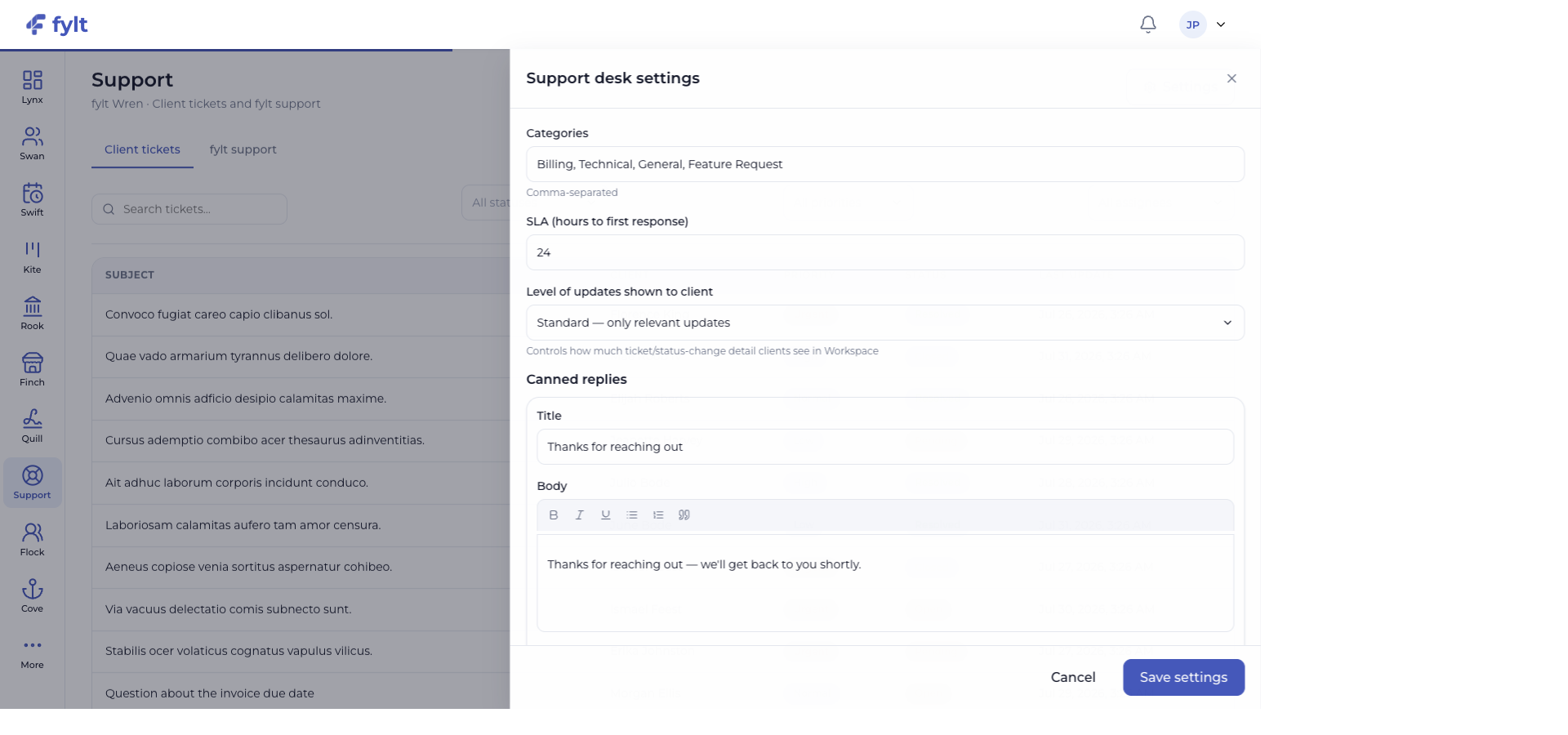
Studio > Support > Settings
Wren settings turn your preferred service standards and response patterns into a repeatable support experience.
List the categories clients and team members use to describe a request.
Makes triage and reporting more consistent.
Set the SLA hours that represent the service level your business wants to provide.
Gives the team a clear, shared response goal.
Choose the amount of ticket and status context that clients see in their experience.
Creates communication that matches the relationship and service model.
Save the reusable responses your team can insert and tailor during a ticket reply.
Speeds up common answers while preserving a personal final message.
Support conversations remain associated with the client relationship, team ownership, and notification system. Contact requests from the fylt marketing site also arrive in Wren, creating one clear team queue for follow-up.
Use fylt AI to create or refine canned replies and prepare thoughtful ticket responses while keeping the final message personal and in your team's control.
fylt Wren is wired to: