A clear view of the work, revenue, and relationships moving your business forward.
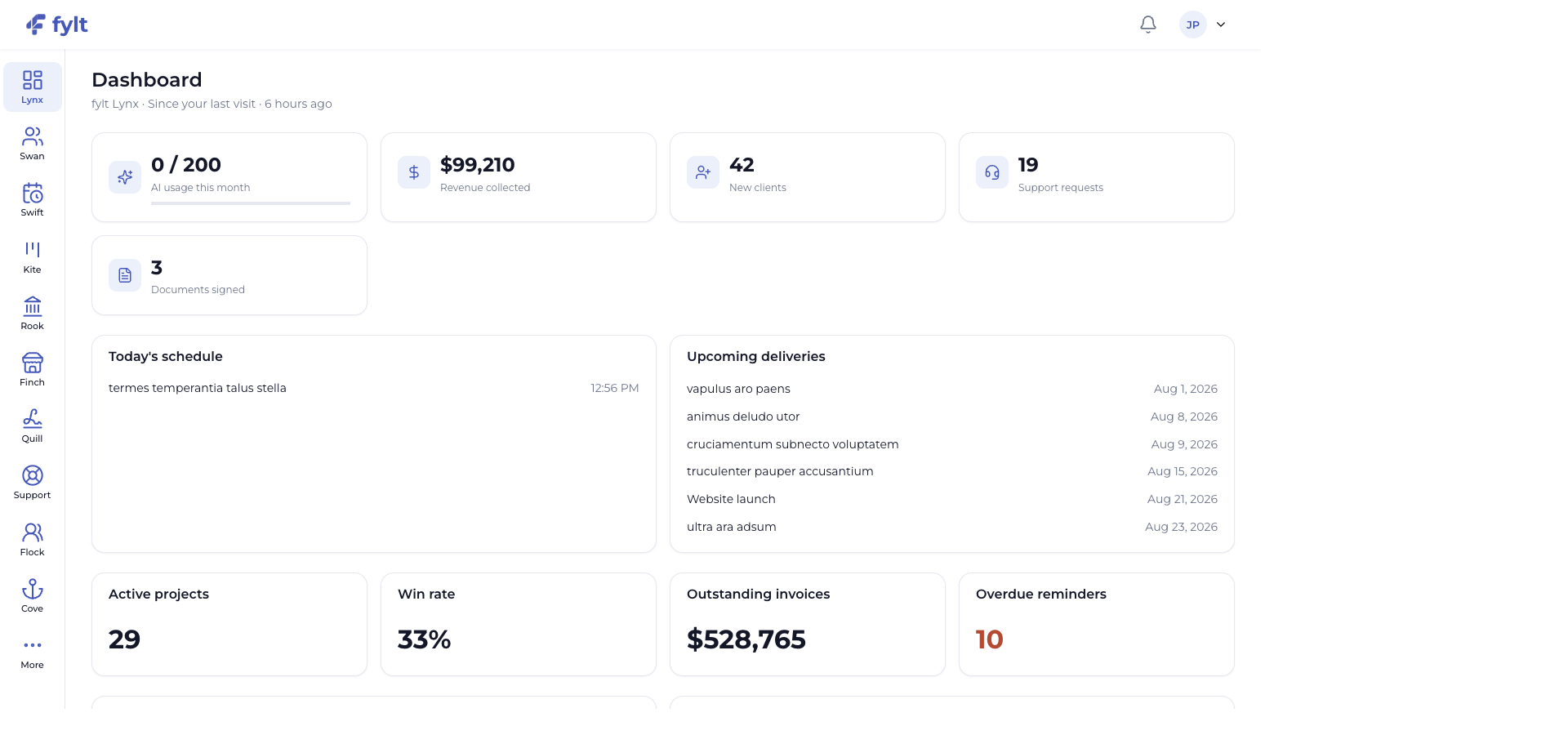
Studio capture. Full-width Studio view: Lynx brings the live signals that matter to the start of the workday, including AI usage, revenue, clients, support, schedule, deliveries, projects, and invoice activity.
What it does
fylt Lynx is your daily command center. It brings live client, project, billing, calendar, document, and support signals into one Studio dashboard so your next valuable action is always easy to find.
Capabilities and value
Explore the parts of fylt Lynx that support a connected client workflow from the first action to the next useful handoff.
See the business at a glance
Lynx combines selected metrics from client management, billing, projects, documents, calendar, and support into one focused workspace.
Start each day with a clear view of opportunities, delivery commitments, and client activity.
Move directly into the work
Dashboard cards and lists connect back to the source workflow, such as an upcoming meeting, active project, outstanding invoice, or support request.
Turn a useful signal into the next action without losing context.
Track AI use alongside operations
AI-enabled plans show monthly AI usage in the dashboard so teams can use assisted drafting thoughtfully across the product.
Make AI a visible, intentional part of the operating rhythm.
Keep every team member oriented
The dashboard brings shared work into view while each person continues from the underlying module that owns the action.
Create a consistent daily starting point for a growing team.
Configure it for your business
Studio > Dashboard
Shape Lynx around the signals your team uses most often, then use it as the starting point for daily client operations.
Widget layout
Arrange the dashboard widgets in the order that best reflects your workday.
Keeps priority signals visible as soon as Studio opens.
Enabled-module signals
Choose the fylt modules that support your plan and workflow.
Lynx surfaces the business areas your team is actively using.
Time and trend views
Use the available comparison range when reviewing current activity and momentum.
Supports more informed client and delivery conversations.
Getting started
Lynx is on by default the moment you create an account — there's nothing to install or configure.
Widgets appear automatically as you enable modules; a Kite-only subscriber sees project widgets, not billing charts.
Drag widgets to reorder your layout, or hide ones you don't need from the widget menu.
Key settings
Layout: rearrange or hide widgets per your workflow — saved per user, not per tenant.
Date range: switch the comparison window (this week / month / quarter) for trend widgets.
Notifications digest: choose whether Lynx surfaces a daily or weekly summary email.
Daily workflow
Open Studio each morning and let Lynx tell you what needs attention: overdue invoices, tickets waiting on a reply, meetings today.
Click any widget to jump straight into the source module (e.g., an overdue invoice widget opens that invoice in Rook).
Use the activity feed to catch anything a teammate changed since you last logged in.
What updates next
Lynx reads from the modules enabled for your business. A booking in Swift, an approved quotation in Rook, a project stage update in Kite, or a support conversation in Wren can all surface as timely dashboard context.
fylt AI in this workflow
On AI-enabled plans, Lynx also makes monthly AI usage visible so your team can confidently use assisted drafting across the workflows that benefit from it.
Make the most of it
Lynx only shows widgets for modules you've enabled — add a module to unlock its widget.
Pin your three most-used widgets to the top so they're visible without scrolling.
Use the date-range selector to compare this month against last before a client check-in.